Finally, the package with the digitized films has arrived, and you are eagerly checking and viewing the files on the stick. So far, everything is working and looks great, perfect!
Many customers suddenly, or even consciously, wish to share the films on the stick with children, relatives, friends, club members, etc. No problem, the new stick/new sticks are purchased, plugged in along with the stick we provided, and ready to be duplicated. But what does this error message mean?
“The file “xyz.mp4″ is too large for the destination file system.”
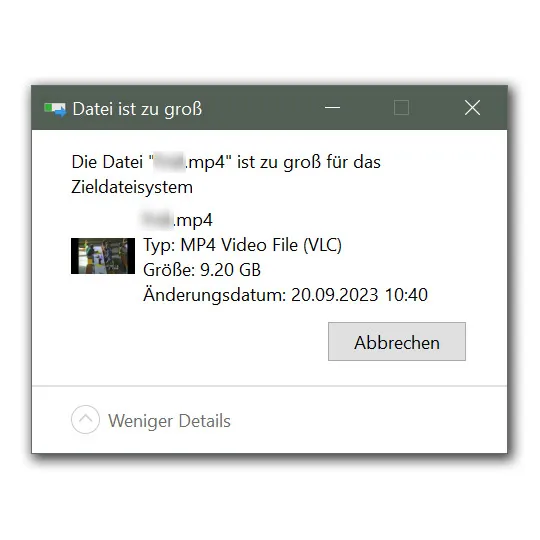
“Why is that? Did FilmFix implement some kind of copy protection? That can’t be right!” Then we receive an email or phone call asking why the films (or at least some of them) cannot be saved to the newly purchased USB stick(s).
First of all, we did not install any copy protection or other hurdles to make your life difficult. The problem lies in the formatting of the newly purchased USB sticks. Therefore, here’s a brief technical explanation:
There are different types of hard drive formatting that can be used for various purposes:
- FAT32: FAT32 is an older file system used on many older computers and devices. It’s a simple file system compatible with almost all operating systems. However, it has some limitations, such as a maximum file size of 4GB.
- NTFS: NTFS is a more modern file system used on many newer computers and devices. It’s a robust file system that offers many features, such as the ability to store large files and manage user access rights.
- HFS+: HFS+ is a file system used on Apple computers. It offers many features, such as the ability to store large files and manage user access rights.
- exFAT: exFAT is a newer file system used on many newer computers and devices. It’s a simple file system compatible with almost all operating systems and has no file size restrictions.
For USB sticks to work on all possible operating systems and playback devices, they are usually delivered preformatted with FAT32, just to ensure compatibility everywhere. However, if you want to store large movie files on them, it won’t work because FAT32 cannot handle files larger than 4GB. The consequence: “The file “xyz.mp4″ is too large for the destination file system.”
To solve this problem, you need to reformat the new stick(s). Note that all data stored on them will be erased after formatting! Here’s how to do it.
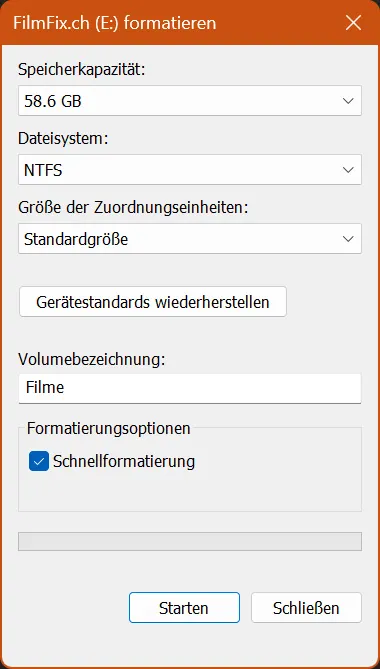
If you’re in the Windows world:
- Insert a USB stick into a USB port.
- Open the File Explorer.
- Click on “This PC” in the left pane.
- Right-click on the USB stick under “Devices and drives” and select “Format”.
- Use the “File System” dropdown menu and choose the desired option NTFS or exFAT.
- Use the default size in the “Allocation unit size” dropdown menu.
- Confirm a volume label in the “Volume label” field, such as “Movies” in File Explorer.
- Click the “Start” button.
- Click the “Yes” button.
- Done and ready for large files.
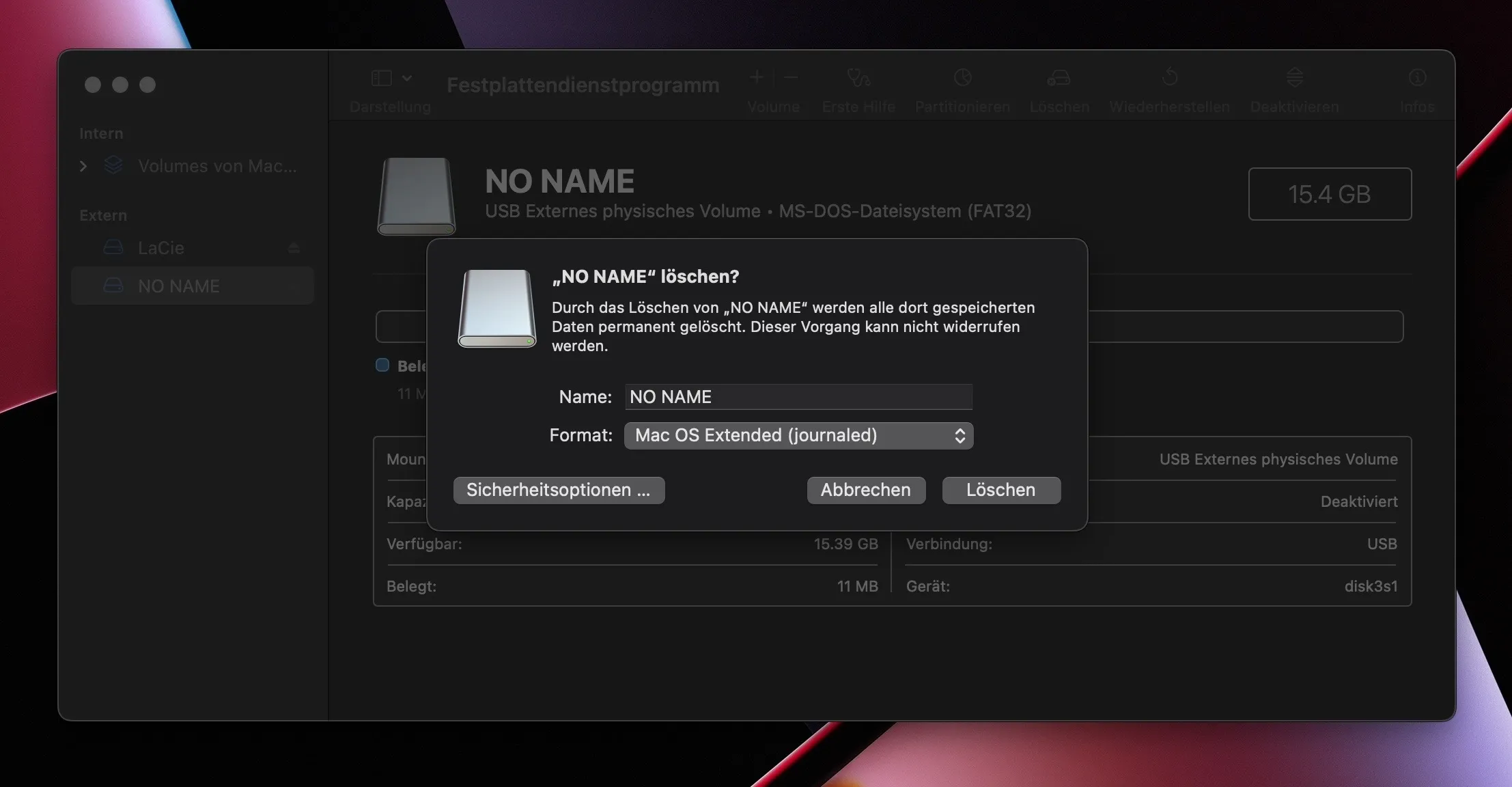
If you’re in the macOS world:
- Connect a USB stick to your USB port.
- Launch the “Disk Utility” (via Applications > Utilities > Disk Utility).
- Select the USB stick from the list on the left side.
- Select “Erase” at the top.
- Enter a “Name” for the drive and then select a “Format” (file system).
- Select “Erase”.
- Select “Done” when everything is complete.
In both cases, you are now ready to easily copy your films from the stick we provided to the new stick. If you still encounter problems, just contact us; we’re always happy to help.